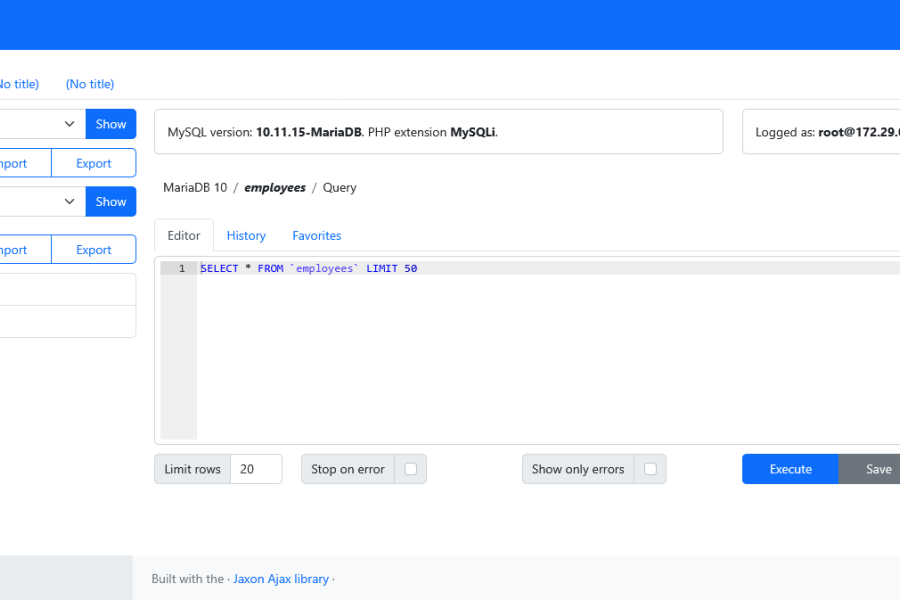
This tutorial covers the use of the Infisical server with the Jaxon DbAdmin database management tool to store the credentials of the managed databases in a secure location.
The first part covers the installation and configuration of the Jaxon DbAdmin application, while the second part covers the installation and setup of the Infisical server, and how it is used to secure the Jaxon DbAdmin application.
Note While many of its feature are ready for use, Jaxon DbAdmin is still a work in progress, and is not yet ready for production.
What is Infisical
According to its website, Infisical is a all-in-one platform to securely manage application secrets, certificates, SSH keys, and configurations across teams and infrastructures.
The feature we'll be using here is Secrets Management, which allow to centralize application secrets across environments and workloads, enforce identity-based access, auditing, and secure delivery at runtime.
Why use Infisical with Jaxon DbAdmin
By default, Jaxon DbAdmin stores all the database credentials on the server it is installed on. While this already brings a higher level of security compared to spreading the database credentials across the developer teams, the security can be further improved by storing the credentials in a secure location.
When managing multiple database servers or multiple Jaxon DbAdmin instances, fetching the database credentials from the Infisical server instead of providing them all when deploying the application, will make the deployment much more simple. Moreover, the Jaxon DbAdmin application can benefit from the many advanced credentials management features provided by Infisical, like password rotation, and synchronisation with the servers.
Install and populate the databases
In this tutorial, we'll use Docker Compose to install the applications. Let's start by creating the databases we are going to manage.
The Docker Compose file at https://github.com/lagdo/dbadmin-mono/tree/main/docker/compose-dbserver will start four database servers: PostgreSQL 14, PostgreSQL 17, MariaDB 10 and MySQL 8.
The seed container provides scripts to populate the databases with datasets freely available online.
Make sure to copy the https://github.com/lagdo/dbadmin-mono/tree/main/docker/seed and https://github.com/lagdo/dbadmin-mono/tree/main/jaxon-dbadmin/migrations directories locally and update the volumes in the docker-compose.yml file accordingly.
Create and start the containers.
docker compose up -dNow enter the seed container, and run the scripts in the /home/dbadmin/scripts directory to populate the PostgreSQL, MariaDB and MySQL databases.
The /home/dbadmin/scripts/pgsql/auditdb.sh script migrates the PostgreSQL 17 server for the Jaxon DbAdmin audit logs feature.
Install the Jaxon DbAdmin application
The Jaxon DbAdmin application is available as a Docker image at https://hub.docker.com/r/lagdo/jaxon-dbadmin.
Before installing the application, we need some config files.
The config/dbadmin.json file lists the managed database servers, and defines the access per user or role.
In the config/dbadmin.php file, the audit logs are enabled and a database is defined for their storage.
The audit database is PostgreSQL 17, which was migrated with the /home/dbadmin/scripts/pgsql/auditdb.sh script.
Note The environment variables are specified in a custom format. The
env()function is not called directly.
With this setup, the access to the database servers and the audit logs page is granted only to the user with email admin@company.com.
We now define the database addresses, port numbers and credentials as environment variables in the .env.dbadmin file.
The Jaxon DbAdmin application can now be started with the following docker-compose.yml file.
Make sure the config files are stored in the paths specified in this file.
Since the database containers have exposed their port numbers, the jaxon-dbadmin container connects to them using the host address, as defined in the extra_hosts section.
The last install step is to create a user in the application.
Enter the jaxon-dbadmin container, and run the following command, which will prompt for the user password.
cd /var/www
php artisan user:create --name Admin --email admin@company.com
Note This command is a Laravel Artisan console command.
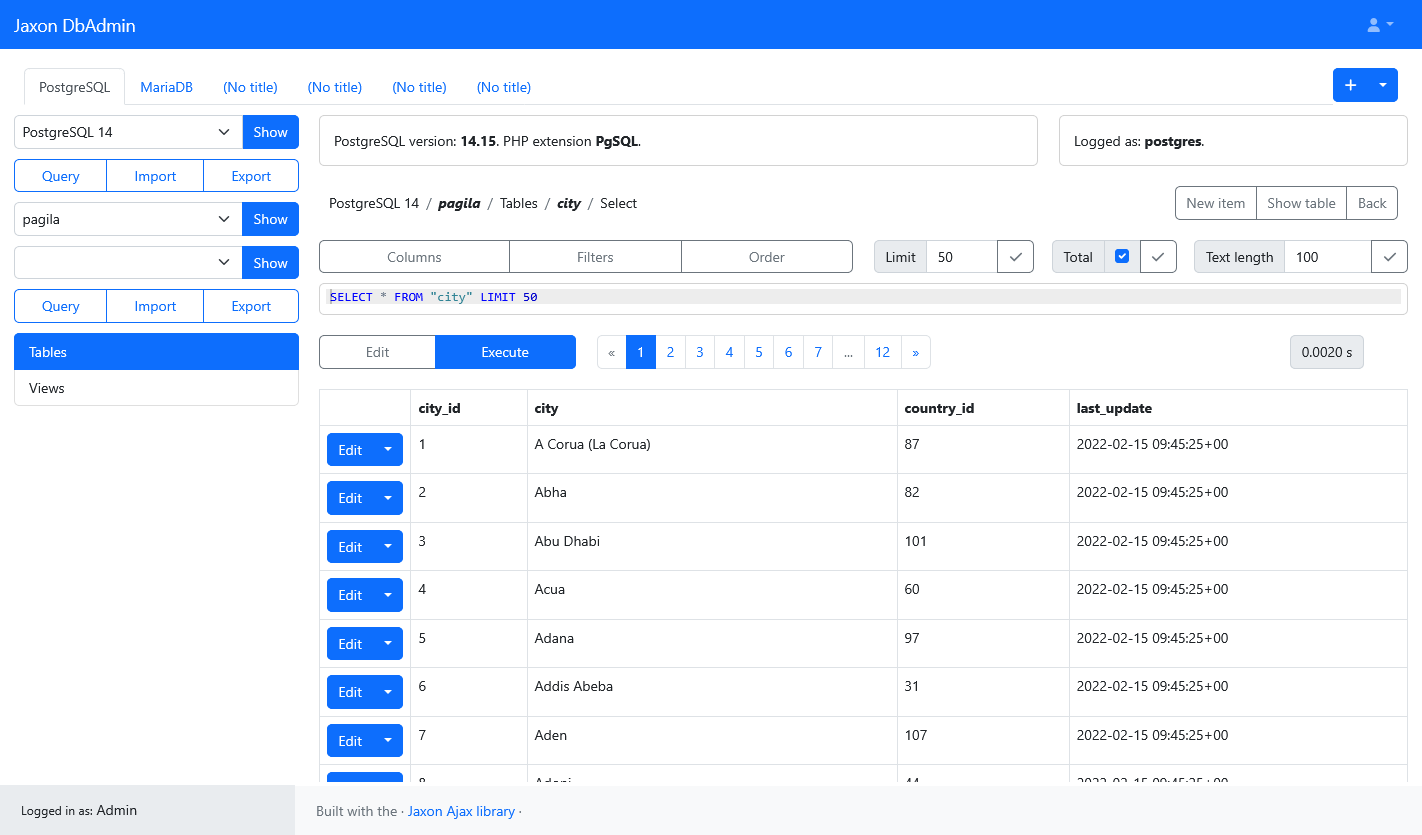
Now, the Jaxon DbAdmin application is up and running, and the user can log in using the credentials provided in the above command, and browse the managed databases in multiple tabs.
Install and setup the Infisical server
At this point, the Jaxon DbAdmin application uses the credentials stored in the .env.dbadmin file to connect to the database servers.
We are now going to migrate those credentials to a local instance of the Infisical running with Docker.
The Docker Compose file to run the Infisical server is here: https://github.com/lagdo/dbadmin-mono/tree/main/docker/compose-secret. It is the same as this one, with some slight changes.
After running the docker compose up -d command, the application can be browsed at http://localhost:7095.
The user is now able to create a first admin user account and connect into the dashboard.
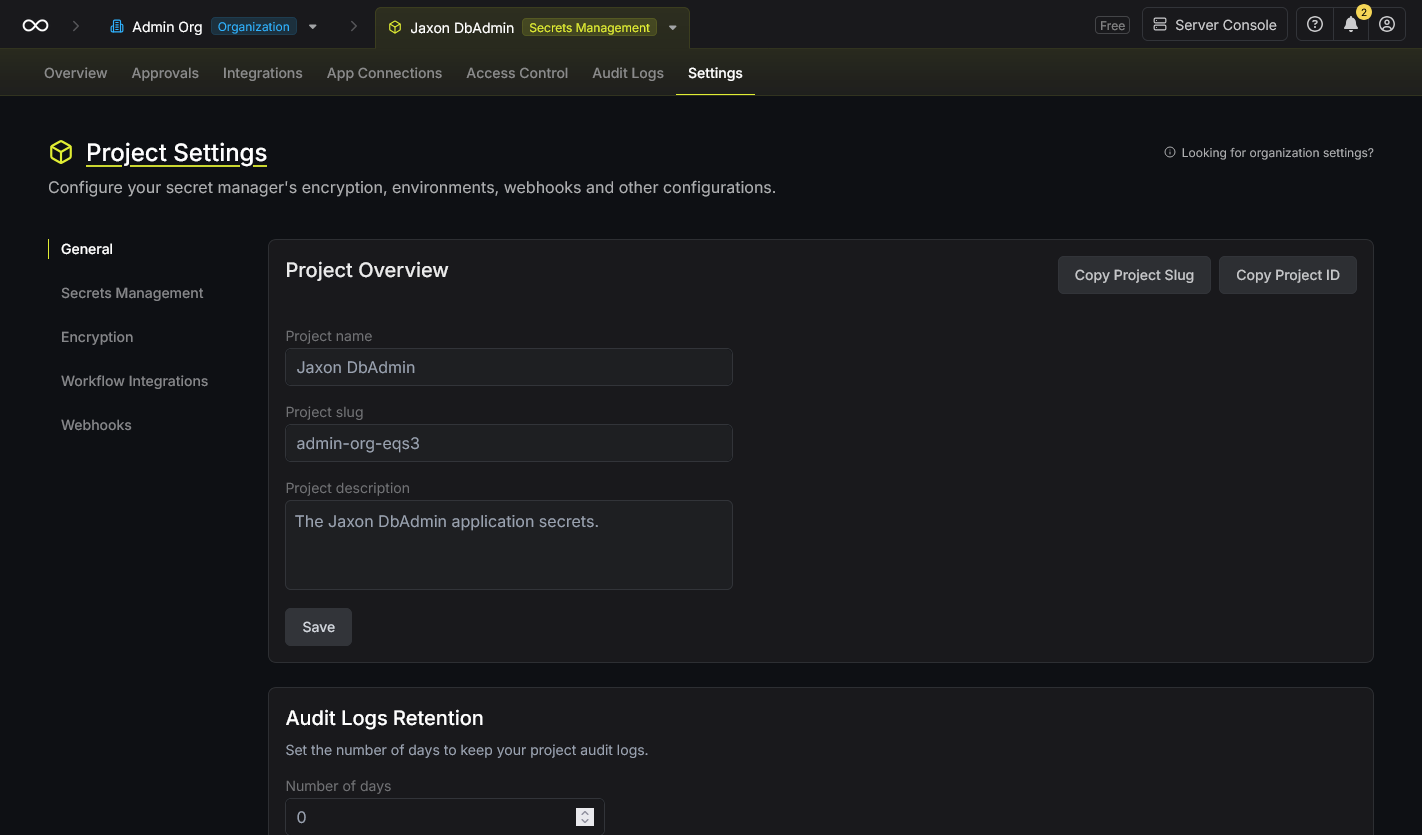
Create a project of type Secrets Management for the Jaxon DbAdmin credentials, and copy its id.
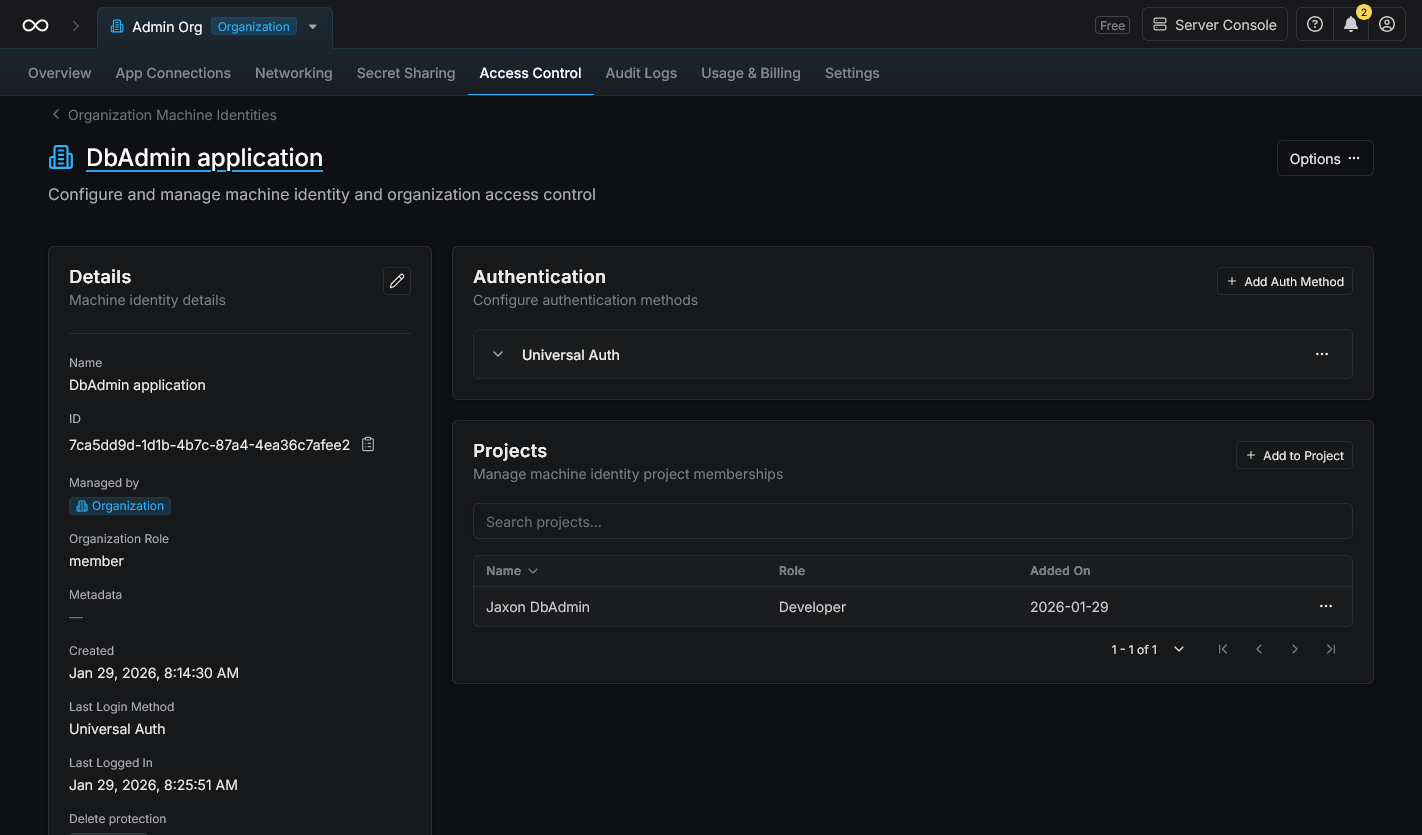
Create a machine identity for the DbAdmin application server, and add that new identity to the Jaxon DbAdmin project.
Add a secret in the Universal Auth window, and copy the client id and client secret id.
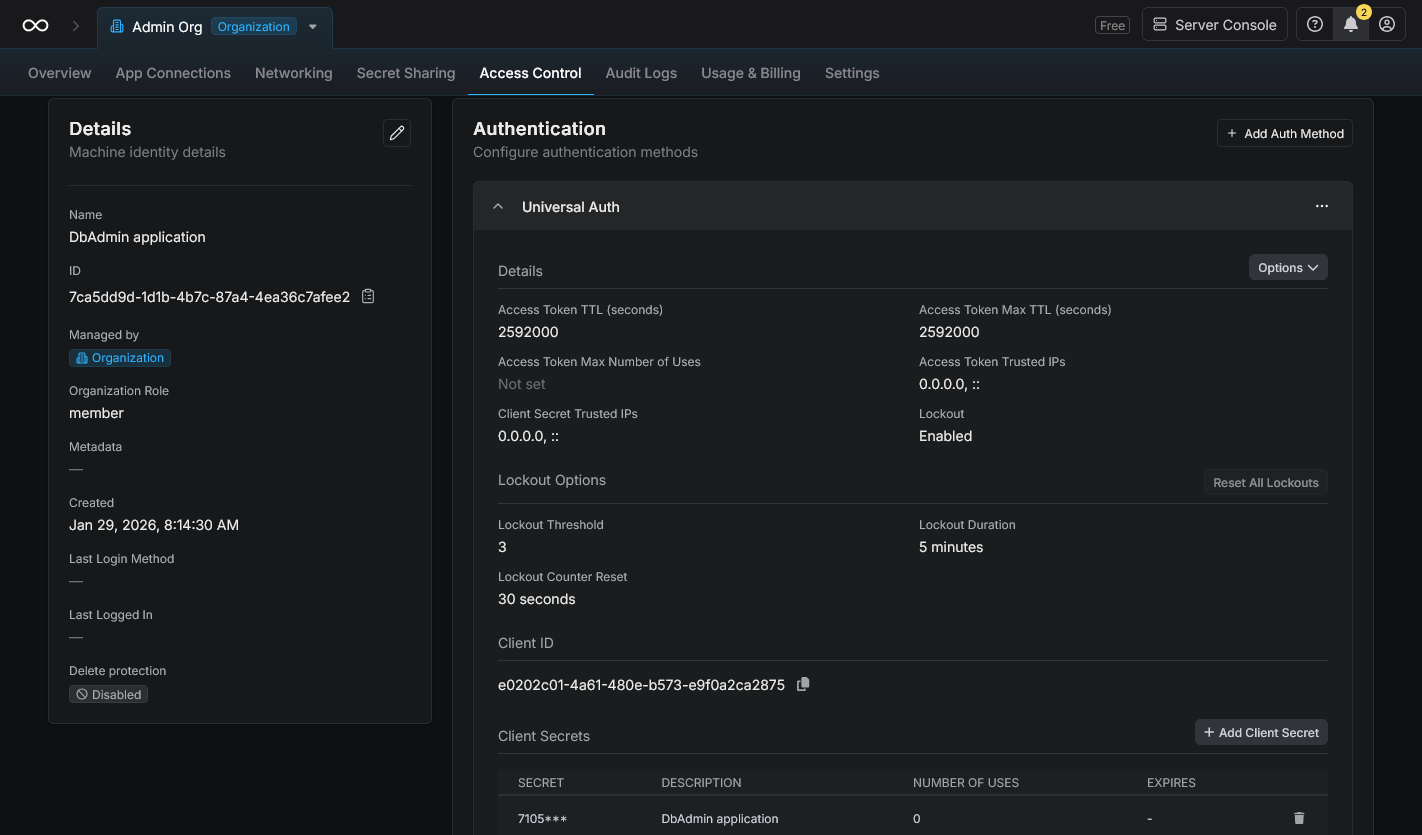
The last step here is to create the Jaxon DbAdmin secrets.
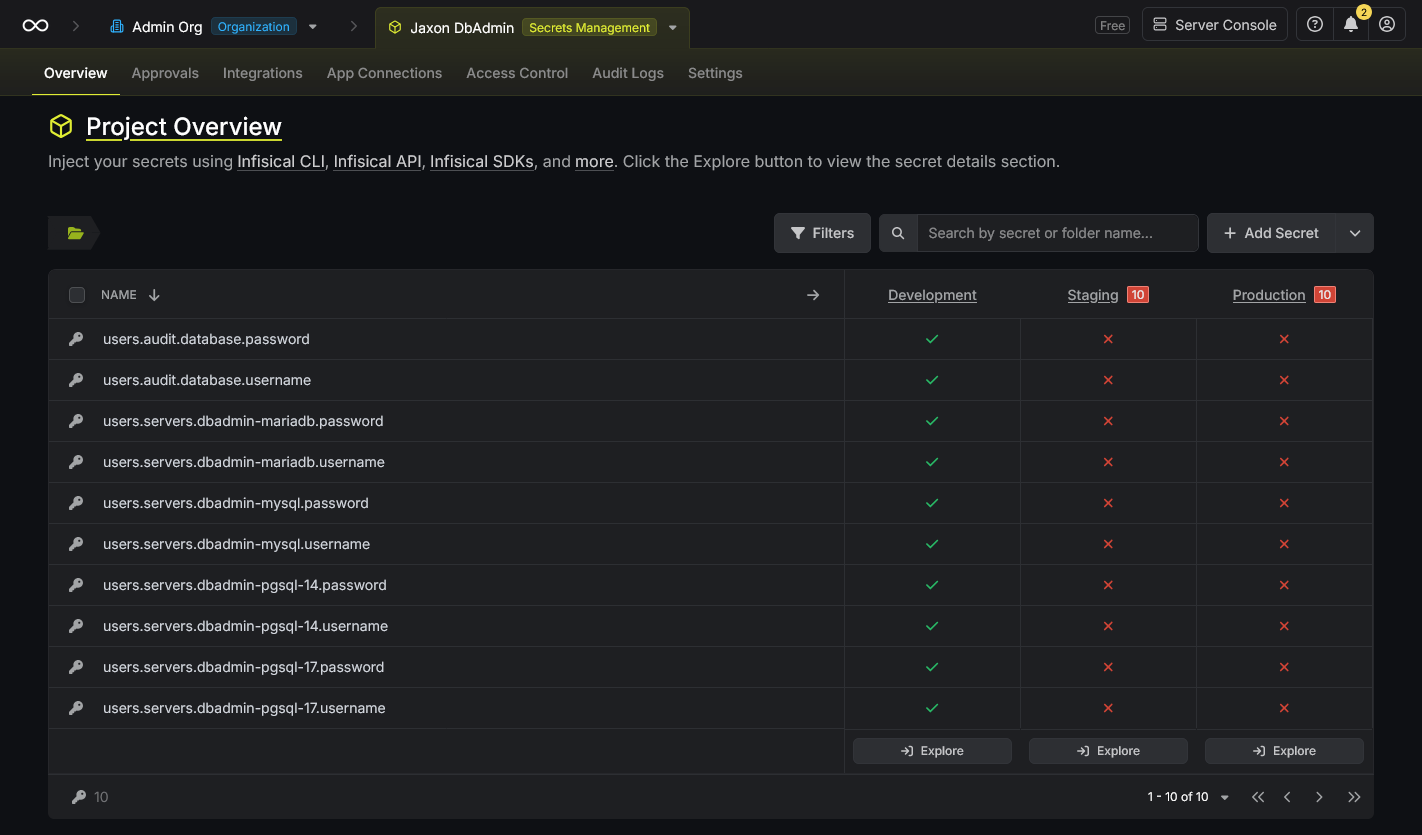
For each database server, there is a secret for the username and another one for the password.
To keep things simple, each secret name has the same value as the corresponding option name in the Jaxon DbAdmin config, with users. as prefix.
Setup the Jaxon DbAdmin for Infisical
Edit 2026/02/10 The
0.9.0release of Jaxon DbAdmin now includes by default aconfig readerfor Infisical. It is no more required to add and register theInfisicalConfigReaderclass in the Jaxon container as described above. Read theConfig readerssection in the documentation for more information.
We are now going to setup the Jaxon DbAdmin application to fetch the database credentials from the Infisical server.
First update the .env.dbadmin file with the Infisical server URL and ids, and delete the database credentials.
Jaxon DbAdmin uses a configurable config reader class to read database credentials.
In order to be able to read those credentials from the Infisical server, we'll need to provide a custom config reader class.
A default class is provided, which we are going to extend to implement our custom config reading feature.
<script src="https://gist.github.com/feuzeu/b65056ee1ed2c7320ff149cd3dd58095.js"></script>The getUsername() and getPassword() functions are overridden, and now get their values from the Infisical server.
Note The
$secretKeyvalue needs to be set according to how the secret are stored in the Infisical project. TheAuthInterfaceobject can also allow to return a different key depending on the user email or role.
This file will be located at app/Infisical/InfisicalConfigReader.php, and Jaxon DdAdmin needs to be configured to use it to read config.
So the config/jaxon.php file is edited with the following changes: the App\Infisical\InfisicalConfigReader class is defined as the config reader, and a new entry is added in the Jaxon DI container.
    'packages' => [
        Lagdo\DbAdmin\Db\DbAdminPackage::class => [
            // Config reader definition
            'config' => [
                'reader' => InfisicalConfigReader::class,
            ],
        ],
    ],
    'container' => [
        'set' => [
            // Config reader DI
            InfisicalConfigReader::class => function(Container $di) {
                $auth = $di->g(AuthInterface::class);

                $infisicalSdk = new InfisicalSDK(env('INFISICAL_SERVER_URL'));
                $clientId = env('INFISICAL_MACHINE_CLIENT_ID');
                $clientSecret = env('INFISICAL_MACHINE_CLIENT_SECRET');
                // Authenticate on the Infisical server.
                $infisicalSdk->auth()->universalAuth()->login($clientId, $clientSecret);
                // Create the Infisical secrets service.
                $secrets = $infisicalSdk->secrets();
                $projectId = env('INFISICAL_PROJECT_ID');
                return new InfisicalConfigReader($auth, $secrets, $projectId, 'dev');
            },
        ],
    ],
Note The
App\Infisical\InfisicalConfigReaderclass can be defined in the Laravel service container instead.
Here's the modified config/jaxon.php file.
The databases credentials can now be removed from the config/dbadmin.json config file.
This Dockerfile installs the Infisical PHP SDK in the Jaxon DbAdmin application.
The new docker-compose.yml will now setup the Jaxon DbAdmin application to read the managed databases credentials from the local Infisical server.
Jaxon DbAdmin now runs exactly as before, but without any database username or password stored locally.
Securing the Jaxon DbAdmin application with Infisical
While the Infisical PHP SDK documentation recommends to set the machine identity tokens as environment variables, as we did in this tutorial, the Infisical service can also secure the entire application.
A howto for the Laravel framework is provided: https://infisical.com/docs/integrations/frameworks/laravel. With this feature, the Infisical cli injects the environment variables and secrets into the Laravel application, Jaxon DbAdmin in our case.
The question that might arise here is why use the Jaxon DbAdmin custom config reader instead of the Infisical cli.
The main difference is that the Infisical cli injects all the secrets once when the application server (not the Laravel application itself) starts, while the config reader fetches the secrets it needs from the Infisical server on each request, and is then able to ask for or receive a different secret depending on the current application state, or the changes on the Infisical server.
So the user might choose the technique that best fits its requirements, and even use both of them simultaneously.